sinet.com.kh

Saturday, July 13, 2019

Script Move Simple Queue on Top

*Script Move Simple Queue on Top
1. Create Simple Queue
2. Create Script
3. Create Schedule

In this configuration we use MikroTik Routerboard CCR1036-8G-2S+ with Firmware 6.43

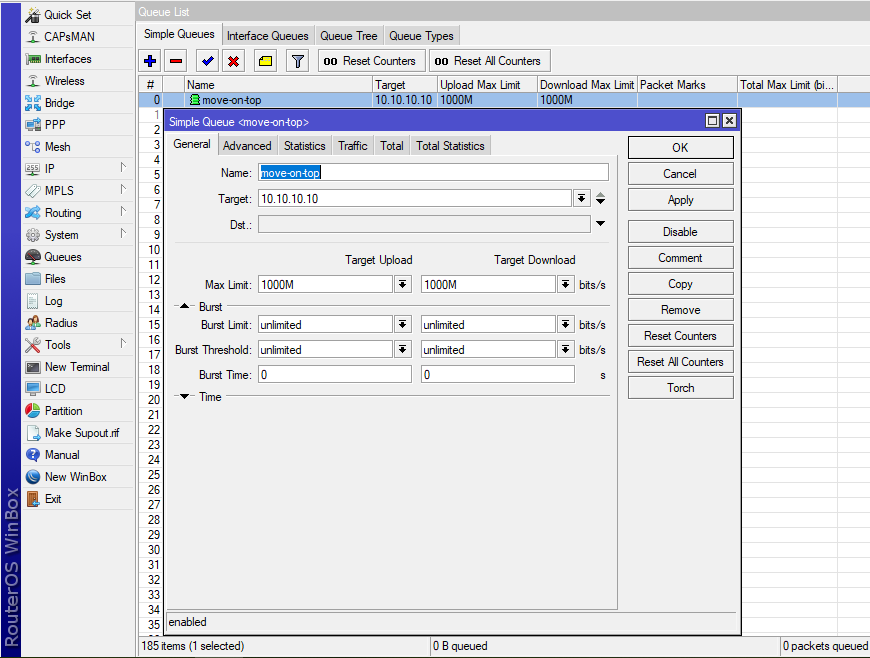
1. Create Simple Queue
/queue simple
add max-limit=1000M/1000M name=move-on-top target=10.10.10.10/32

2. Create Script
/system script
add dont-require-permissions=no name=move-on-top-simple-queue owner=saoheng policy=ftp,reboot,read,write,policy,test,password,sniff,sensitive,romon source="/queue simple move [find name=\"move-on-top\"] [:pick [find] 0]"

3. Create Schedule
/system scheduler
add interval=1m name=move-on-top on-event=move-on-top-simple-queue policy=ftp,reboot,read,write,policy,test,password,sniff,sensitive,romon start-time=startup
*Schedule will run every each 1 minute and simple queue name "move-on-top" will go on top (index 0).

Saturday, June 29, 2019

Load Sharing 2 WAN and 6 LAN by using Vlan

In this configuration we will show you how to configure Load Sharing 2 WAN and 6 LAN by using Vlan. We use Mikrotik

Network Diagram
1. Comment Interface
2. Create Bridge-Vlan
3. Create Vlan
4. Configure IP Address for WAN
5. Configure IP Address for LAN
6. Configure DNS Server
7. Configure DHCP Server
8. Configure IP Address Lists
9. Configure Mark Routing
10. Configure Static Route
11. Configure NAT
12. Add Port to Bridge-Vlan

Network Diagram


1. Comment Interface
/interface ethernet
set [ find default-name=ether1 ] name=ether1-WAN1
set [ find default-name=ether2 ] name=ether2-WAN2
set [ find default-name=ether3 ] comment="# LAN"
2. Create Bridge-Vlan
/interface bridge
add fast-forward=no name=bridge-VLAN
3. Create Vlan
/interface vlan
add interface=bridge-VLAN name=vlan10 vlan-id=10
add interface=bridge-VLAN name=vlan11 vlan-id=11
add interface=bridge-VLAN name=vlan12 vlan-id=12
add interface=bridge-VLAN name=vlan20 vlan-id=20
add interface=bridge-VLAN name=vlan21 vlan-id=21
add interface=bridge-VLAN name=vlan22 vlan-id=22
4. Configure IP Address for WAN
/ip address
add address=96.9.74.110/24 interface=ether1-WAN1 network=96.9.74.0
add address=203.217.170.111/24 interface=ether2-WAN2 network=203.217.170.0
5. Configure IP Address for LAN
/ip address
add address=10.10.10.1/24 interface=vlan10 network=10.10.10.0
add address=10.10.11.1/24 interface=vlan11 network=10.10.11.0
add address=10.10.12.1/24 interface=vlan12 network=10.10.12.0
add address=10.10.20.1/24 interface=vlan20 network=10.10.20.0
add address=10.10.21.1/24 interface=vlan21 network=10.10.21.0
add address=10.10.22.1/24 interface=vlan22 network=10.10.22.0
6. Configure DNS Server
/ip dns
set servers=8.8.8.8,8.8.4.4
7. Configure DHCP Server
/ip dhcp-server network
add address=10.10.10.0/24 gateway=10.10.10.1
add address=10.10.11.0/24 gateway=10.10.11.1
add address=10.10.12.0/24 gateway=10.10.12.1
add address=10.10.20.0/24 gateway=10.10.20.1
add address=10.10.21.0/24 gateway=10.10.21.1
add address=10.10.22.0/24 gateway=10.10.22.1

/ip pool
add name=dhcp_pool1 ranges=10.10.10.10-10.10.10.254
add name=dhcp_pool2 ranges=10.10.11.10-10.10.11.254
add name=dhcp_pool3 ranges=10.10.12.10-10.10.12.254
add name=dhcp_pool4 ranges=10.10.20.10-10.10.20.254
add name=dhcp_pool5 ranges=10.10.21.10-10.10.21.254
add name=dhcp_pool6 ranges=10.10.22.10-10.10.22.254

/ip dhcp-server
add address-pool=dhcp_pool1 authoritative=after-2sec-delay disabled=no interface=vlan10 name=dhcp1
add address-pool=dhcp_pool2 authoritative=after-2sec-delay disabled=no interface=vlan11 name=dhcp2
add address-pool=dhcp_pool3 authoritative=after-2sec-delay disabled=no interface=vlan12 name=dhcp3
add address-pool=dhcp_pool4 authoritative=after-2sec-delay disabled=no interface=vlan20 name=dhcp4
add address-pool=dhcp_pool5 authoritative=after-2sec-delay disabled=no interface=vlan21 name=dhcp5
add address-pool=dhcp_pool6 authoritative=after-2sec-delay disabled=no interface=vlan22 name=dhcp6
8. Configure IP Address Lists
/ip firewall address-list
add address=10.10.10.0/24 list=TO-WAN1
add address=10.10.11.0/24 list=TO-WAN1
add address=10.10.12.0/24 list=TO-WAN1
add address=10.10.20.0/24 list=TO-WAN2
add address=10.10.21.0/24 list=TO-WAN2
add address=10.10.22.0/24 list=TO-WAN2
9. Configure Mark Routing
/ip firewall mangle
add action=mark-routing chain=prerouting new-routing-mark=TO-WAN1 passthrough=yes src-address-list=TO-WAN1
add action=mark-routing chain=prerouting new-routing-mark=TO-WAN2 passthrough=yes src-address-list=TO-WAN2
10. Configure Static Route
/ip route
add check-gateway=ping distance=1 gateway=96.9.74.1 routing-mark=TO-WAN1
add check-gateway=ping distance=1 gateway=203.217.170.1 routing-mark=TO-WAN2
add check-gateway=ping distance=1 gateway=96.9.74.1
add check-gateway=ping distance=1 gateway=203.217.170.1
11. Configure NAT
/ip firewall nat
add action=masquerade chain=srcnat out-interface=ether1-WAN1
add action=masquerade chain=srcnat out-interface=ether2-WAN2
12. Add Port to Bridge-Vlan
/interface bridge port
add bridge=bridge-VLAN interface=ether3
add bridge=bridge-VLAN interface=ether4

Monday, February 25, 2019

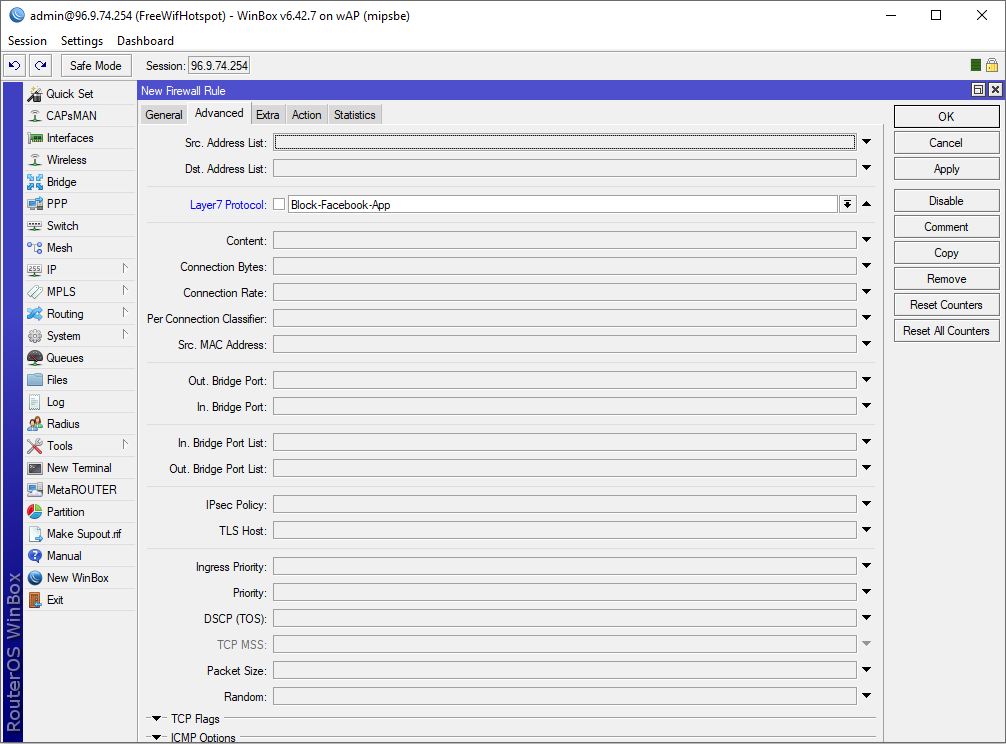
Block Facebook App on Phones and Tablets (iOS and Android)

Today we will show you how to Block Facebook App on Phones and Tablets (iOS and Android) as bellow:
In this configuration we use RouterBOARD wAP 2nD r2 with firmware v6.42.7

1. Create Layer 7
     /ip firewall layer7-protocol
     add name=Block-Facebook-App regexp="^.+(www.facebook.com|facebook.com|login.facebook.com|www.login.facebook.com|fbcdn.net|www.fbcdn.net|fbcdn.com|www.fbcdn.com|static.ak.fbcdn.net|static.ak.connect.facebook.com|connect.facebook.net|www.connect.facebook.net|apps.facebook.com).*\$"^.+
 
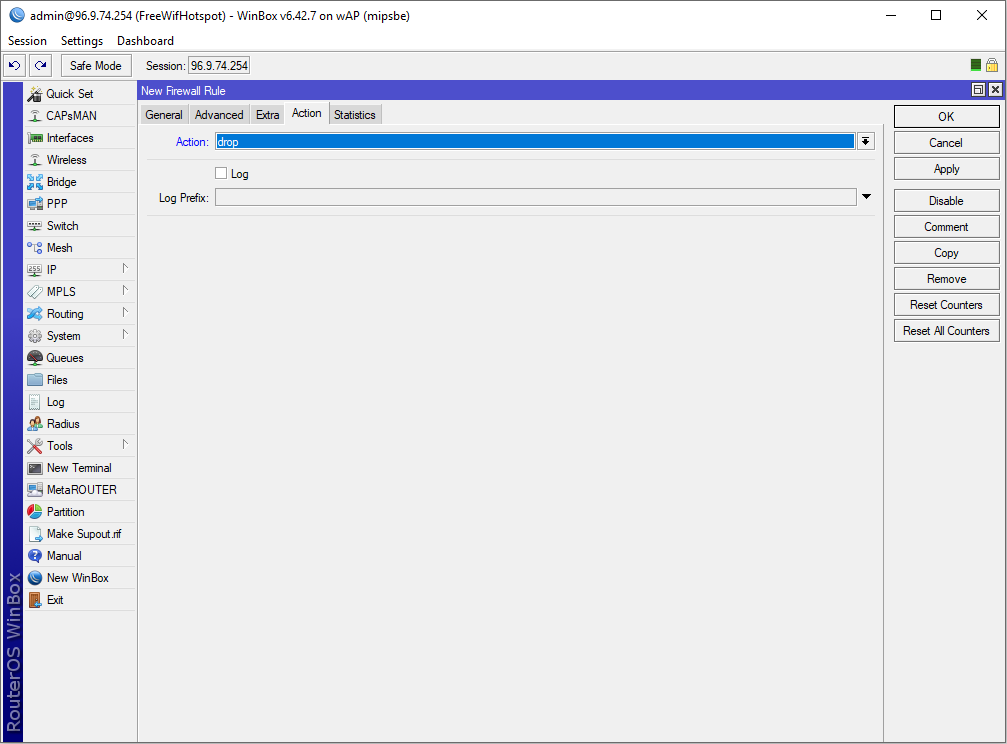
 2. Create filter rule to Block Youtube App  
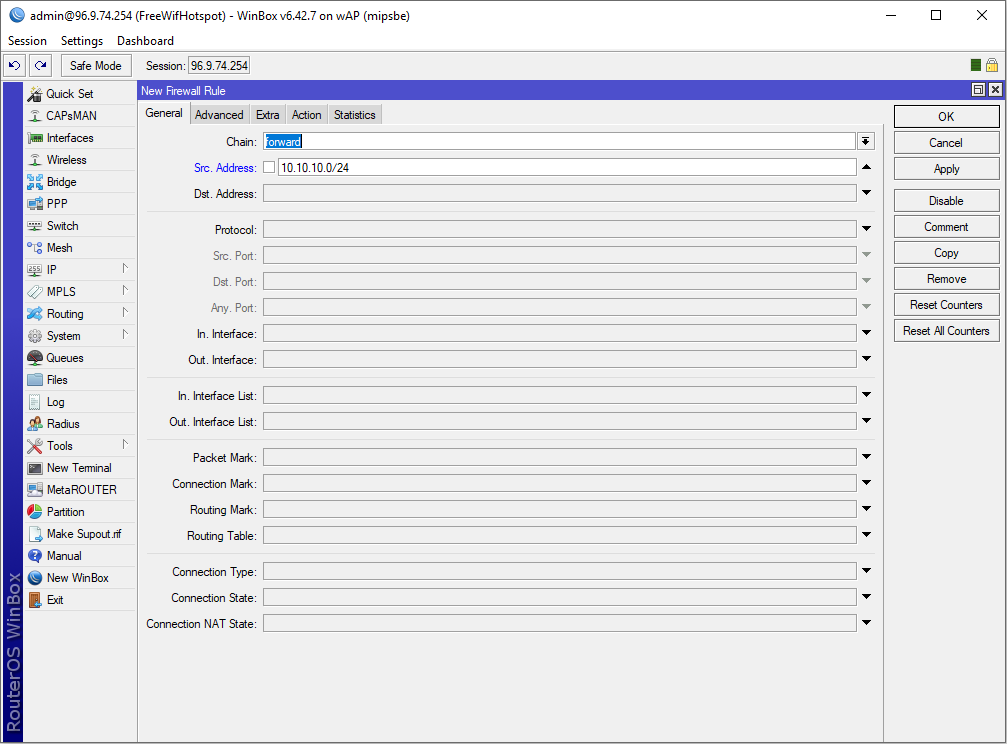
      /ip firewall filter
      add action=drop chain=forward layer7-protocol=Block-Facebook-App src-address= 10.10.10.0/24
 

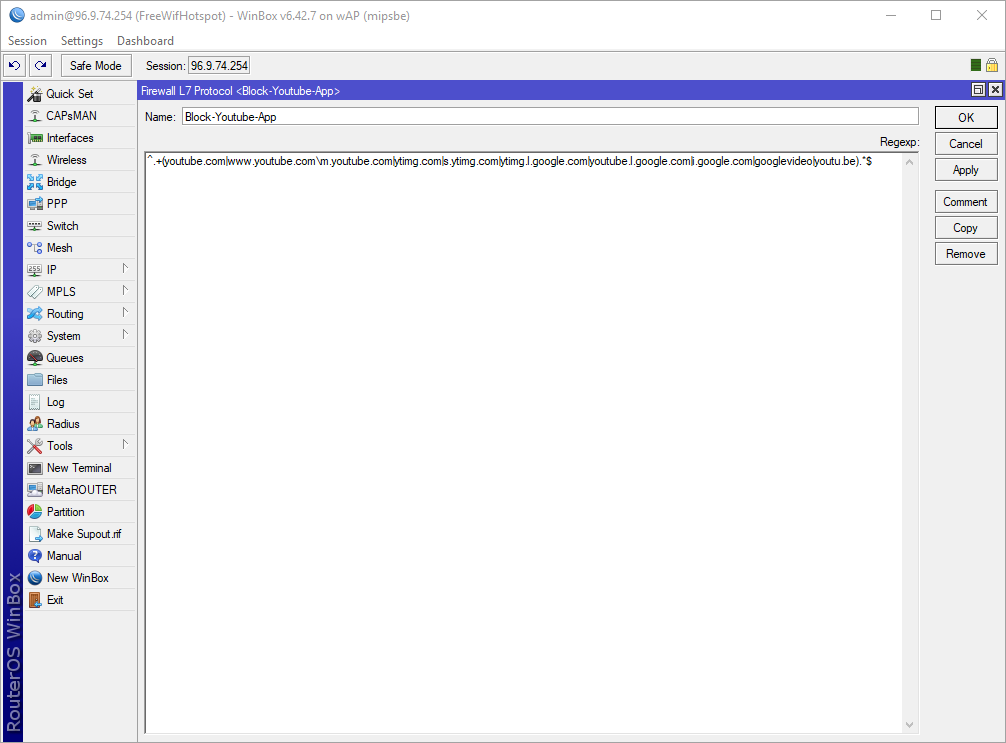
Block Youtube App on Phones and Tablets (iOS and Android)

Today we will show you how Block Youtube App on Phones and Tablets (iOS and Android) as bellow:
In this configuration we use RouterBOARD wAP 2nD r2 with firmware v6.42.7
1. Create Layer 7
     /ip firewall layer7-protocol
     add name=Block-Youtube-App regexp=^.+(youtube.com|www.youtube.com|m.youtube.com|ytimg.com|s.ytimg.com|ytimg.l.google.com|youtube.l.google.com|i.google.com|googlevideo|youtu.be).*$

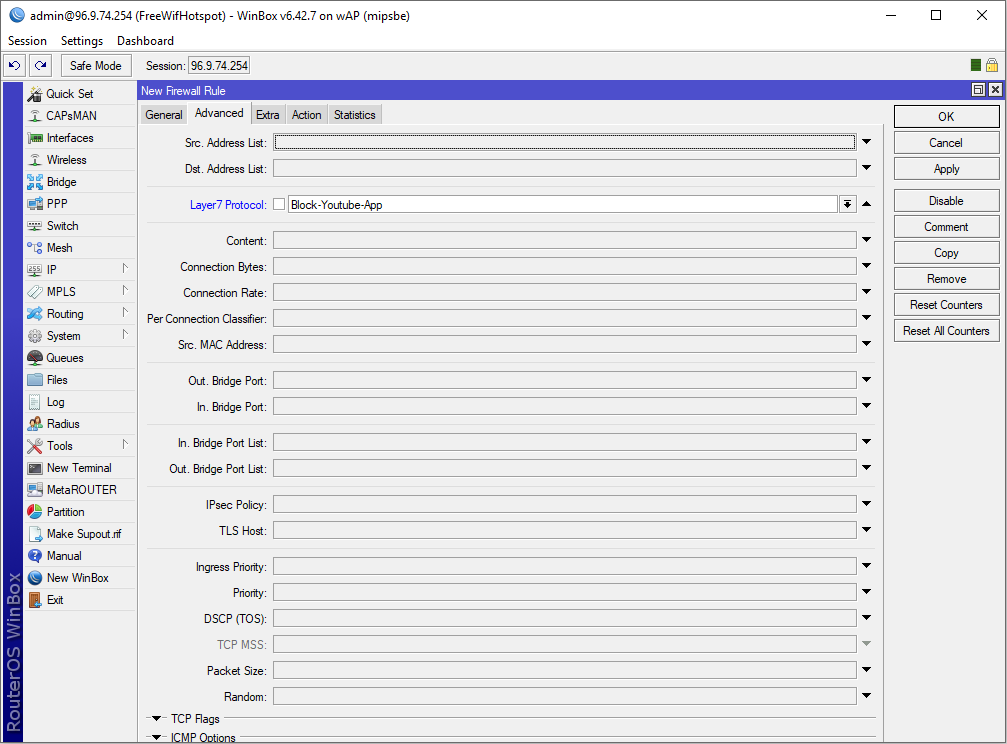
2. Create filter rule to Block Youtube App 
     /ip firewall filter
     add action=drop chain=forward layer7-protocol=Block-Youtube-App src-address= 10.10.10.0/24

Tuesday, December 11, 2018

Load Sharing 2 WAN and 1 LAN (Using Rules)

Today we will show you how to configure Load Sharing 2 WAN and 1 LAN (Using Rules) detail as bellow:
1. Comment Interfaces
2. Create Bridge LAN
3. Configure IP Address for WAN1
4. Configure IP Address for WAN2
5. Configure IP Address for Bridge LAN
6. Configure DNS Server
7. Configure DHCP Server
8. Configure Routes
9. Configure Rules
10. Configure NAT
11. Add Port to Bridge LAN

WAN1: 203.217.169.76/27
WAN2: 202.84.75.242/29
Bridge LAN:  10.12.15.252/22
LAN Gateway: 10.12.15.252
10.12.12.0/24 to SINET
10.12.13.0/24 to SINET
10.12.14.0/24 to SINET
10.12.15.0/24 to CityLink 

In this configuration we use MikroTik RB2011UiAS-2HnD with Firmware v6.42.2
1. Comment Interfaces
/interface ethernet
set [ find default-name=ether1 ] name=ether1-SINET
set [ find default-name=ether2 ] name=ether2-CityLink

2. Create Bridge LAN
/interface bridge
add fast-forward=no name=bridge-LAN

3. Configure IP Address for WAN1
/ip address
add address=202.84.75.242/29 interface=ether2-CityLink network=202.84.75.240

4. Configure IP Address for WAN2
/ip address
add address=203.217.169.76/27 interface=
ether1-SINET network=203.217.169.64

5. Configure IP Address for Bridge LAN
/ip address
add address=10.12.15.252/22 interface=bridge-LAN network=10.12.12.0

6. Configure DNS Server
/ip dns
set servers=8.8.8.8
,8.8.4.4

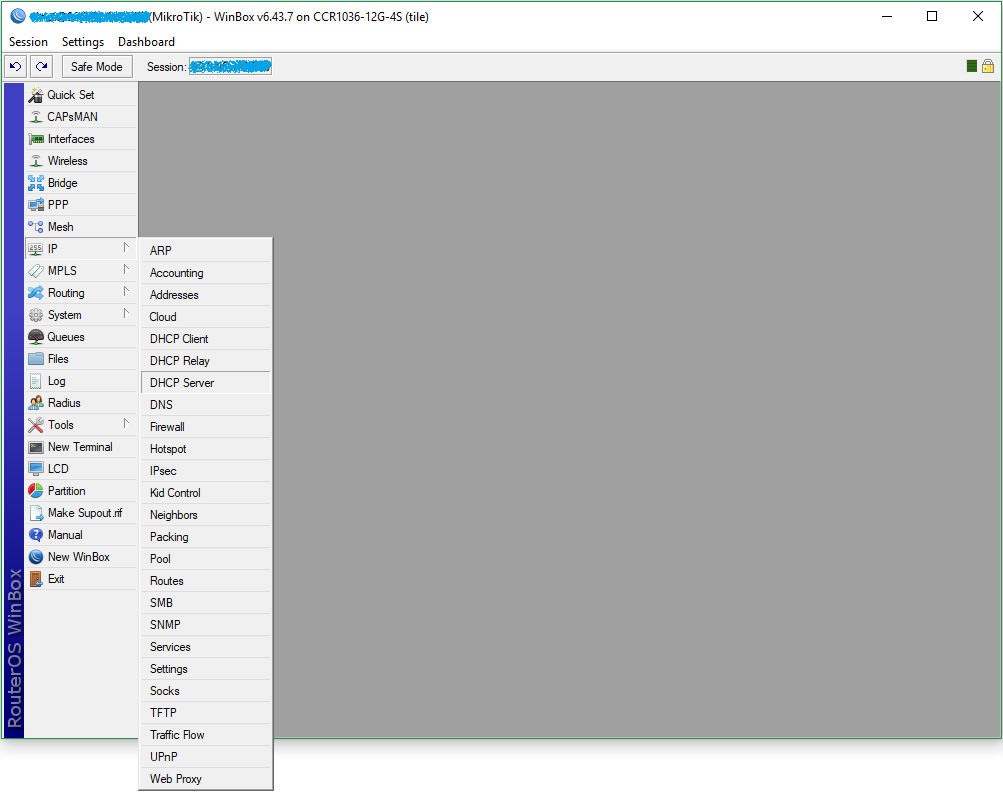
7. Configure DHCP Server
/ip dhcp-server network
add address=
10.12.12.0/22 dns-server=8.8.8.8,8.8.4.4 gateway=10.12.15.252

/ip pool
add name=dhcp_pool1 ranges=
10.12.12.1-10.12.12.251

/ip dhcp-server
add address-pool=dhcp_pool1 authoritative=after-2sec-delay disabled=no     interface=Bridge-LAN lease-time=1d name=dhcp1
 

8. Configure Routes
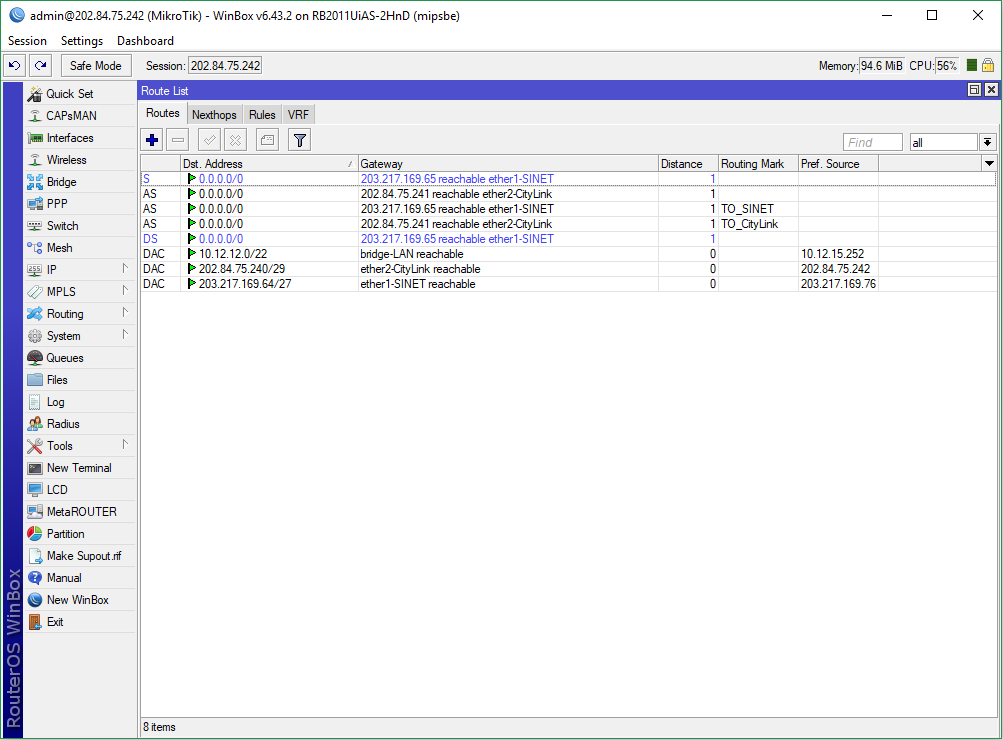
/ip route
add check-gateway=ping distance=1 gateway=203.217.169.65
add check-gateway=ping distance=1 gateway=202.84.75.241
add check-gateway=ping distance=1 gateway=203.217.169.65 routing-mark=TO_SINET
add check-gateway=ping distance=1 gateway=202.84.75.241 routing-mark=TO_CityLink
 
9. Configure Rules
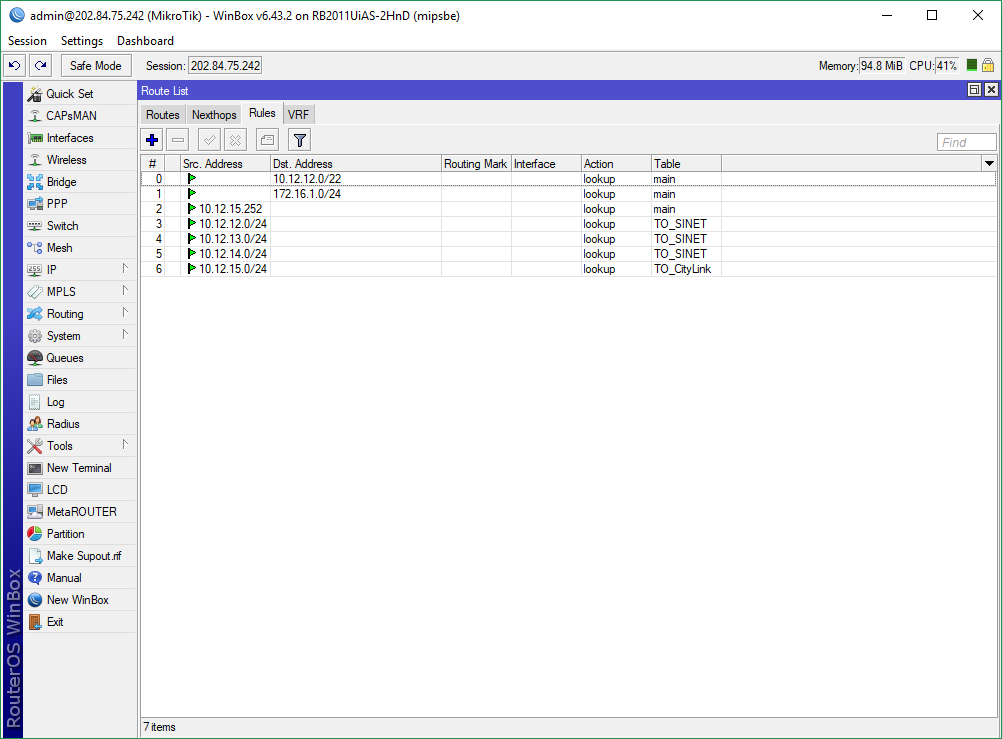
/ip route rule
add dst-address=10.12.12.0/22 table=main
add dst-address=172.16.1.0/24 table=main
add src-address=10.12.15.252/32 table=main

add src-address=10.12.12.0/24 table=TO_SINET
add src-address=10.12.13.0/24 table=TO_SINET
add src-address=10.12.14.0/24 table=TO_SINET
add src-address=10.12.15.0/24 table=TO_CityLink

10. Configure NAT
/ip firewall nat
add action=masquerade chain=srcnat

11. Add Port to Bridge LAN
/interface bridge port
add bridge=bridge-LAN interface=ether3
add bridge=bridge-LAN interface=ether4
add bridge=bridge-LAN interface=ether5
add bridge=bridge-LAN interface=ether6
add bridge=bridge-LAN interface=ether7
add bridge=bridge-LAN interface=ether8
add bridge=bridge-LAN interface=ether9

Monday, December 10, 2018

Load Balancing 3 WAN and 1 LAN

 Load Balancing 3 WAN and 1 LAN
Today we will show you how to configure Load Balancing 3 WAN and 1 LAN detail as bellow:
1. Comment Interface
2. Create Bridge LAN
3. Configure DHCP Client for WAN1, WAN2, and WAN3
4. Configure IP Address for Bridge LAN
5. Configure DHCP Server for Bridge LAN
6. Configure Mangle
7. Configure Routes
8. Configure NAT
9. Add Port to Bridge LAN

WAN1: 96.9.86.187/27
WAN2: 96.9.69.75/24
WAN3: 96.9.86.115/27
Bridge LAN:  172.16.1.1/22

In this configuration we use Mikrotik CCR1036-12G-4S with Firmware v6.43.7
*Note: DNS and Default route will get automatically for this configuration.
1. Comment Interface

2. Create Bridge LAN
/interface bridge
add name=bridge-LAN


3. Configure DHCP Client for WAN1, WAN2, and WAN3
/ip dhcp-client
add dhcp-options=hostname,clientid disabled=no interface=sfp1-Mr.Doeun-Sela-17044
add default-route-distance=2 dhcp-options=hostname,clientid disabled=no interface="sfp2-Mr.Doeun-Sela(Line2)-17551"
add default-route-distance=3 dhcp-options=hostname,clientid disabled=no interface="sfp3-Mr.Doeun-Sela(Line3)-19201"


4. Configure IP Address for Bridge LAN

5. Configure DHCP Server for Bridge LAN
/ip address
add address=172.16.1.1/22 interface=bridge-LAN network=172.16.0.0


6. Configure Mangle
/ip firewall mangle
add action=mark-connection chain=input in-interface="sfp1-Mr.Doeun-Sela(Line1)-17044" new-connection-mark=WAN1_CONN passthrough=no
add action=mark-connection chain=input in-interface="sfp2-Mr.Doeun-Sela(Line2)-17551" new-connection-mark=WAN2_CONN passthrough=no
add action=mark-connection chain=input in-interface="sfp3-Mr.Doeun-Sela(Line3)-19201" new-connection-mark=WAN3_CONN passthrough=no


add action=mark-routing chain=output connection-mark=WAN1_CONN new-routing-mark=TO_WAN1 passthrough=no
add action=mark-routing chain=output connection-mark=WAN2_CONN new-routing-mark=TO_WAN2 passthrough=no
add action=mark-routing chain=output connection-mark=WAN3_CONN new-routing-mark=TO_WAN3 passthrough=no


add action=mark-connection chain=prerouting dst-address-type=!local in-interface=bridge-LAN new-connection-mark=WAN1_CONN passthrough=yes per-connection-classifier=both-addresses-and-ports:3/0
add action=mark-connection chain=prerouting dst-address-type=!local in-interface=bridge-LAN new-connection-mark=WAN2_CONN passthrough=yes per-connection-classifier=both-addresses-and-ports:3/1
add action=mark-connection chain=prerouting dst-address-type=!local in-interface=bridge-LAN new-connection-mark=WAN3_CONN passthrough=yes per-connection-classifier=both-addresses-and-ports:3/2


add action=mark-routing chain=prerouting connection-mark=WAN1_CONN in-interface=bridge-LAN new-routing-mark=TO_WAN1 passthrough=no
add action=mark-routing chain=prerouting connection-mark=WAN2_CONN in-interface=bridge-LAN new-routing-mark=TO_WAN2 passthrough=no
add action=mark-routing chain=prerouting connection-mark=WAN3_CONN in-interface=bridge-LAN new-routing-mark=TO_WAN3 passthrough=no


7. Configure Routes

8. Configure NAT

9. Add Port to Bridge LAN

How to limit Speed with Queue Types

How to limit Speed with Queue Types
1. Create Queue Types
/queue type
add kind=pcq name=30M pcq-classifier=dst-address pcq-rate=30M 

add kind=pcq name=10M pcq-classifier=dst-address pcq-rate=10M
add kind=pcq name=3M pcq-classifier=dst-address pcq-rate=3M


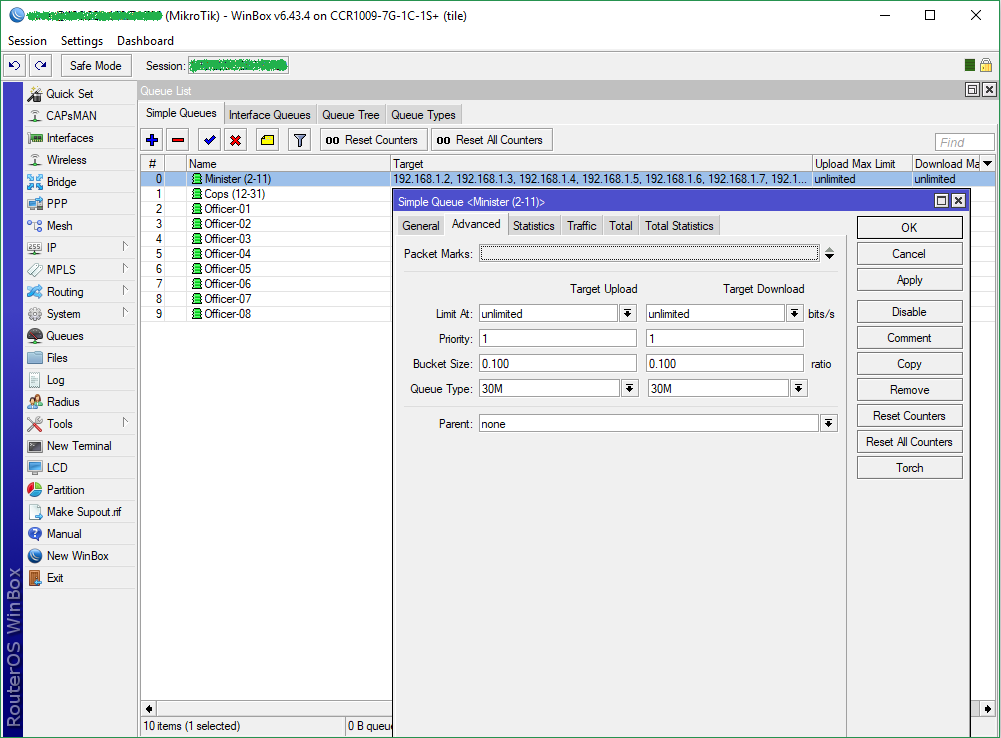
2. Limit Speed on Simple Queue with Queue Types
 /queue simple
add name="Minister (2-11)" priority=1/1 queue=30M/30M target="192.168.1.2/32,192.168.1.3/32,192.168.1.4/32,192.168.1.5/32,192.168.1.6/32,192.168.1.7/32,192.168.1.8/32,192.168.1.9/32,192.168.1.10/32,192.168.1.11/32"